Release preview
Keep the photos together after the event
Release preview, not yet deployed: One Group Central's Event gallery gives your event photos one private home. You choose who can see each album, and separately, who can add photos and write the captions.
Release preview. Availability follows deployment.
Published: . Last updated: .
One place for the photos from every event
After a dinner or a rally, the photos end up spread across a dozen phones. One Group Central's Event gallery gives them one private home. It is a release preview, built for an upcoming release and not yet deployed.
Release preview: Event gallery is implemented for an updated release and is not yet deployed.
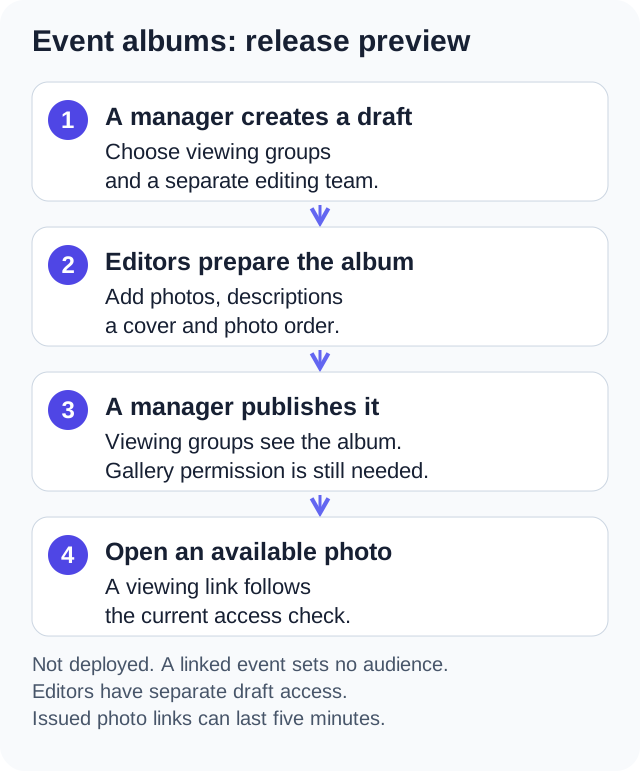
Each album has a title, captions, photo descriptions for screen readers and a cover you pick. Admins choose who can see an album, and separately, who can work on it. When a draft is ready, an admin publishes it. An album can link to an event, but the event's audience does not decide who sees the album.
Pick who sees it and who helps
An admin can share a published album with all members or with chosen groups. A member of any chosen group can see it. A committee's album can stay with that committee, while photos from the yearly party go to all.
Helpers are a separate choice. Pick editor groups or single members to build an album, with no other admin power. Editors can work on drafts and add or remove photos. They can change captions, photo descriptions, the order and the cover. Owners, and admins with Manage Event Gallery, still decide who sees an album. They also decide when it goes out and if it is deleted.
Members still need the View Event Gallery permission. An editor can see the album they are working on, even if they are not in its viewing groups. Linking an event does not copy that event's audience to the album.
Get an album ready before you share it
Start with a draft. Add photos and pick a cover, then publish. You can add a caption to each photo, so members know what they are looking at. A short description of each photo helps members who use a screen reader. Members can open each photo at a larger size and move through the album.
W3C's informative-image guidance says a text description should carry what the image tells the reader. For an event photo, describe the moment that matters, not the file name. A good description lets a member follow the album without seeing the photos.
Photos can be JPEG, PNG, WebP or GIF, up to 20 MB each. They count toward your plan's storage, with no extra gallery plan. Deleting an album takes its photos off the portal right away. The stored files are cleared in the background. Deleting a linked event leaves the album in place.
Photos stay private as access changes
Photos are kept in private storage. The app checks access each time it hands out a short-lived link to view a photo. A link handed out before a change can work for up to five minutes after access changes. So removing a person does not cut off a link they already have at that very moment.
The Gallery switch can hide the whole section and block new requests. Turning it off keeps your albums for when you turn it back on.
Common uses
- A yearly gathering shared with all members
- Committee event photos kept within that committee
- A volunteer team that gets an album ready before an admin publishes it
- A photo record kept after the calendar event is gone
The numbers behind an album
Each album holds up to 1,000 photos. A member can pick up to 100 photos in one upload. The app shows progress and names any file that failed, so a long upload never ends in silence. The server checks each file before it joins the album. It must really be the type of image it claims to be. Album titles can run to 200 characters, captions to 2,000 and photo descriptions to 1,000.
A file's name does not prove what is inside it. OWASP's file-upload guidance says not to trust the stated file type alone. Check it against the file's own contents too. Renaming a file to end in .jpg does not make it a photo.
As with every upload in One Group Central, you can paste a link to a photo that is online. The member's device fetches the image and uploads it through the same checks. A link is never a way around the size or storage limits.
Edge cases the preview already handles
Deleting a member group does not quietly open an album to all. The album keeps the deleted group on its viewing list. The album stays limited until an admin removes the old group in the album settings. Clearing the last viewing group asks you to confirm first. An album with no viewing groups is open to all members.
Storage comes back when photos go. Deleting a photo or an album returns its space to your plan right away. The stored files are cleared in the background, with retries until the job is done. An upload that would take you past your plan's storage limit is refused before the photo is accepted.
How albums fit with the rest
Albums work with your calendar and your member groups. Groups you set up for news and chat can be viewing groups or editor groups. An album can point back to the event it came from. Members can search the album list, open photos full size, zoom and swipe, and download single photos.
A union local could give its retiree committee a group. Two of its members become editors of the retirement dinner album. Viewing stays open to the whole local. The editors upload and caption the photos over the next week. An admin publishes the album when it is ready. The example shows how the preview is meant to be used, not a real customer.
FAQ
Is the Event gallery available now?
No. Event gallery is implemented for an updated release and is not yet deployed.
Does the gallery cost extra?
No. There is no separate gallery plan. Photos count toward the storage on your current plan.
Can an editor change who sees an album?
No. Editors work on the photos and the text. Viewing groups, editor choices, publishing and deleting stay with owners and admins who have Manage Event Gallery.
Guides
The admin guide covers album access and editing. The member guide covers browsing and adding to an album.
See the release preview
Release preview. Availability follows deployment.