Pay dues and event fees
Can I pay dues and event fees in the portal?#
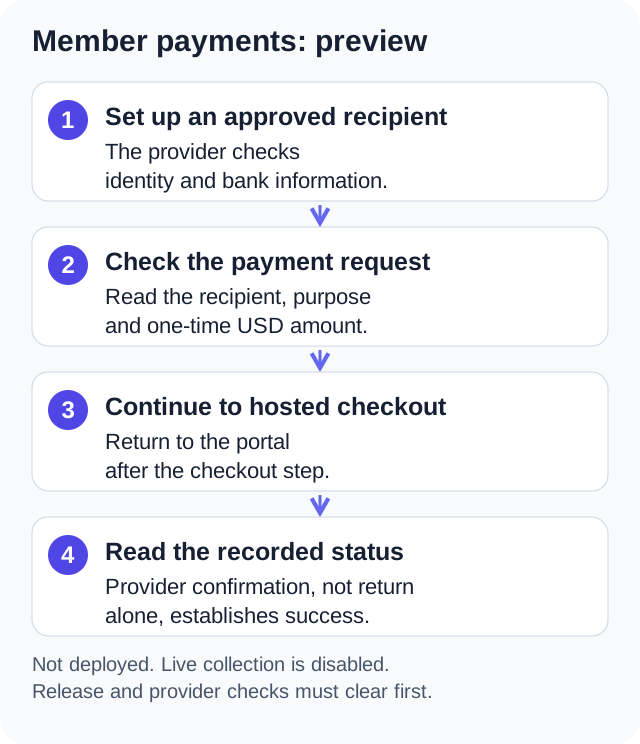
Member payments are a development preview and are not deployed. The preview lets assigned payers check a charge's recipient and amount, continue to secure checkout and read payment history. Live use requires release validation and provider setup. Keep using your organization's current payment instructions until it announces an available collection.
Check and pay a charge#
- Open "Payments" from the home screen, then "To pay".
- Open the request. Check the description, recipient, USD amount, due date, and any reference such as your unit number.
- Choose "Pay now", check the "Confirm payment" details, then choose "Continue to secure checkout" to open the payment provider's page.
- Complete checkout and return to Payments.
- Use "Check payment status" to reload the server's payment record. If the checkout is still pending and available, "Resume checkout" reopens it.
The recipient is the organization or the named, approved event organizer. Contact that recipient before paying if the purpose, amount, or reference looks wrong. A due date records the requested date; the app does not add late fees automatically.
Checkout opens in your browser. Card details go to the payment provider. Closing that browser window or returning to the app does not confirm payment. A pending payment stays pending until confirmation reaches the server. If a request times out, check its status before trying again.
What the Payments screen shows#
The Payments screen in the preview has two views for every member: "To pay", which lists the requests assigned or offered to you, and "Payment history". A third view, "My collections", appears only for administrators with payment permission and for members an administrator has approved to collect. Each request card shows its title, the amount in USD, the recipient and your status, such as Unpaid, Pending or Paid. Lists show 50 items per page, with "Previous page" and "Next page" buttons below them.
Request amounts are fixed by whoever created the request, from 0.50 to 999,999.99 USD. You cannot change the amount at checkout or pay part of it. When a request is open to all members, each member can pay it once, and the person collecting cannot pay their own request.
Checkout on a phone and in a web browser#
On a phone, "Continue to secure checkout" opens the payment provider's page in your browser, outside the app. In the web app, the provider's page replaces the portal in the same browser tab and sends you back to the request when you finish or cancel. The app only opens a stripe.com address for checkout; any other address is refused with "The payment provider returned an invalid link."
A checkout page stays usable for about 30 minutes. After that the request answers "This checkout expired. Try Pay again to open a new checkout." Open the request and choose "Pay now" to start a fresh one.
Messages you might see#
A notice at the top of the screen explains why payment is not possible: "TEST MODE: No real money is collected." marks a test setup, "Payments are turned off. Your payment history remains available." means your organization switched the feature off, and "Payment setup is not available yet. No new payments can be started. Contact your organization administrator." means collection is not ready. After you return from checkout, "Payment confirmation is pending. Check payment status before trying again." means the server has not yet heard from the provider.
When an action fails, a short message appears at the bottom of the screen starting with "Could not complete this payment action. Please try again." followed by the reason, such as "This request has already been paid" or "Too many payment requests. Try again in a minute." The second one appears after more than 10 of the same payment action in one minute.
Read payment history#
"Payment history" shows your payment records. Pending means confirmation is still outstanding. Paid means the provider confirmed the payment. A failed or expired attempt did not complete through that checkout. Refunded, partially refunded, and disputed records remain in history.
You can also reach "Payment history" from Profile when the organization has turned off new payments. Test mode is visibly marked and does not collect real money. Test and live payment records are separate.
Keep the payment record#
Tap any entry in "Payment history" to open its "Payment record". The record lists the request title, recipient, amount, status, any refunded or pending refund amount, your reference, when the payment started and when it was paid, and a Payment ID you can select and copy. Keep that Payment ID when you contact the recipient, because it identifies the exact attempt.
Ask about a refund#
Contact the recipient shown on the request. The recipient handles refunds and disputes through their Stripe dashboard. A refund is not complete merely because someone says they have requested it; check the provider and your payment record. "Refund pending" is separate from the amount already refunded. A failed or canceled refund does not mean money was returned. A refunded request does not automatically become payable again.
Missing or unavailable charges#
A request may be assigned to particular members or closed to new payments. New payments can also be unavailable because recipient setup is incomplete, the organization has disabled Payments, or the platform has not enabled live collection. Your administrator can check the setup.
For household dues, the administrator assigns a responsible member and can include a unit reference. Other household members do not automatically share that person's payment record or become responsible for the same request.
Collect for an event#
Your administrator must approve you before you can use "My collections". See Manage dues and event collections for recipient setup and creating an event request. Approval applies to collecting eligible event charges; it does not permit general transfers between members.
Stripe's refund documentation explains that a refund can only go back to the original payment method and can fail when the customer's bank or card issuer cannot process it. The Consumer Financial Protection Bureau describes how a cardholder disputes a charge with the card company. Those pages explain how card refunds and disputes work in general; they do not decide a particular request, and the recipient shown on the request is still the first person to contact.
Published: . Last updated: .